Tools for being creative! (M1 iPad Pro 12.9)
📖 Note: This post is from the archives. It may reflect outdated views or a previous name. This blog post has been altered to remove direct mentions of people due to safety concerns.
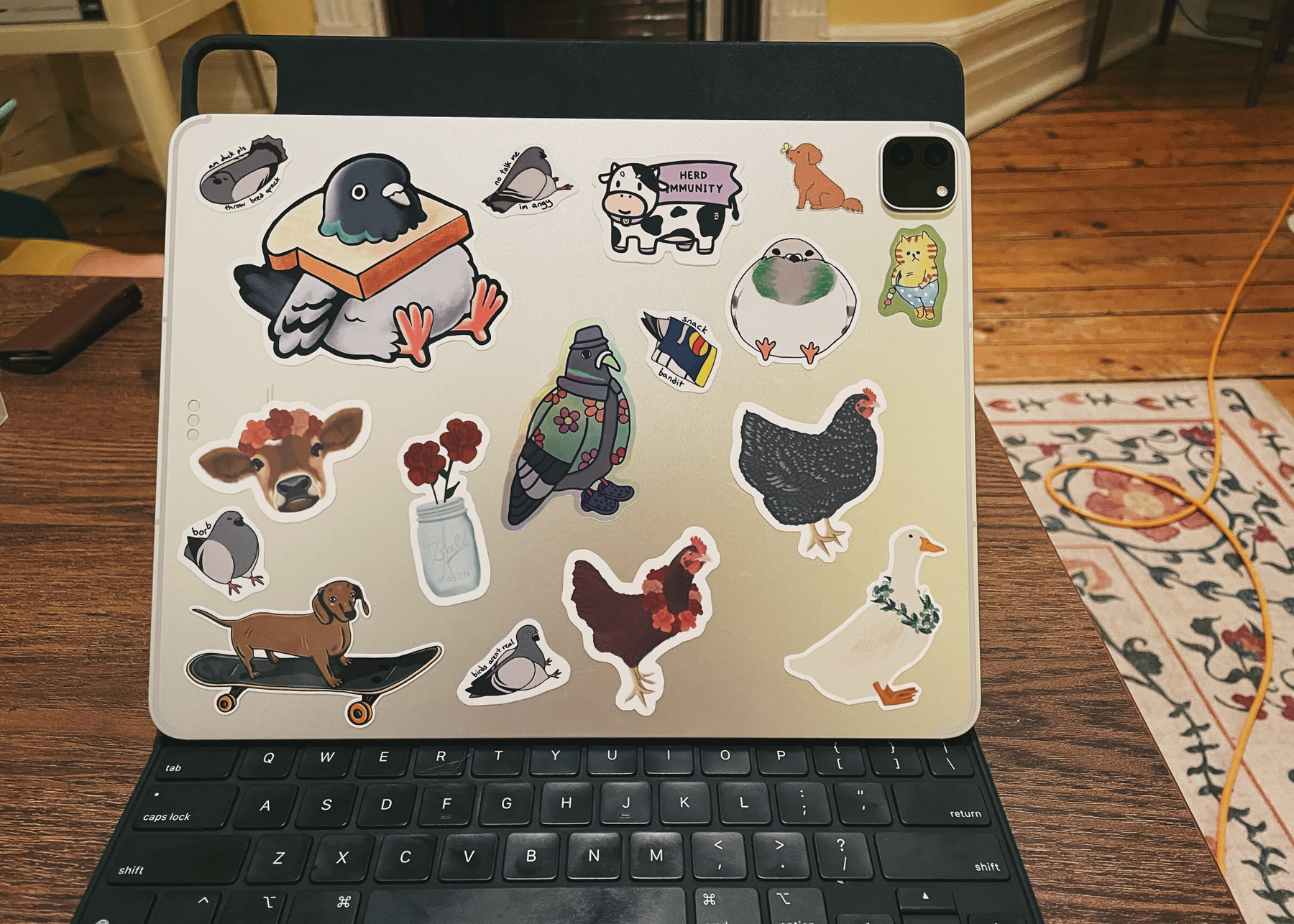
I recently picked up a M1 iPad Pro 12.9” to replace my personal MacBook Air. I prefer the form factor for illustration and note taking, and it can do basically everything else I need it to when its attached to my magic keyboard case. I’ve tried to use an iPad as my daily driver multiple times but the attempts always failed because I was trying to force it to be a Mac. Instead I had to adapt my workflow and have been using my iPad full-time for about a month. It’s the only device I interact with (other than my iPhone) outside of work hours.
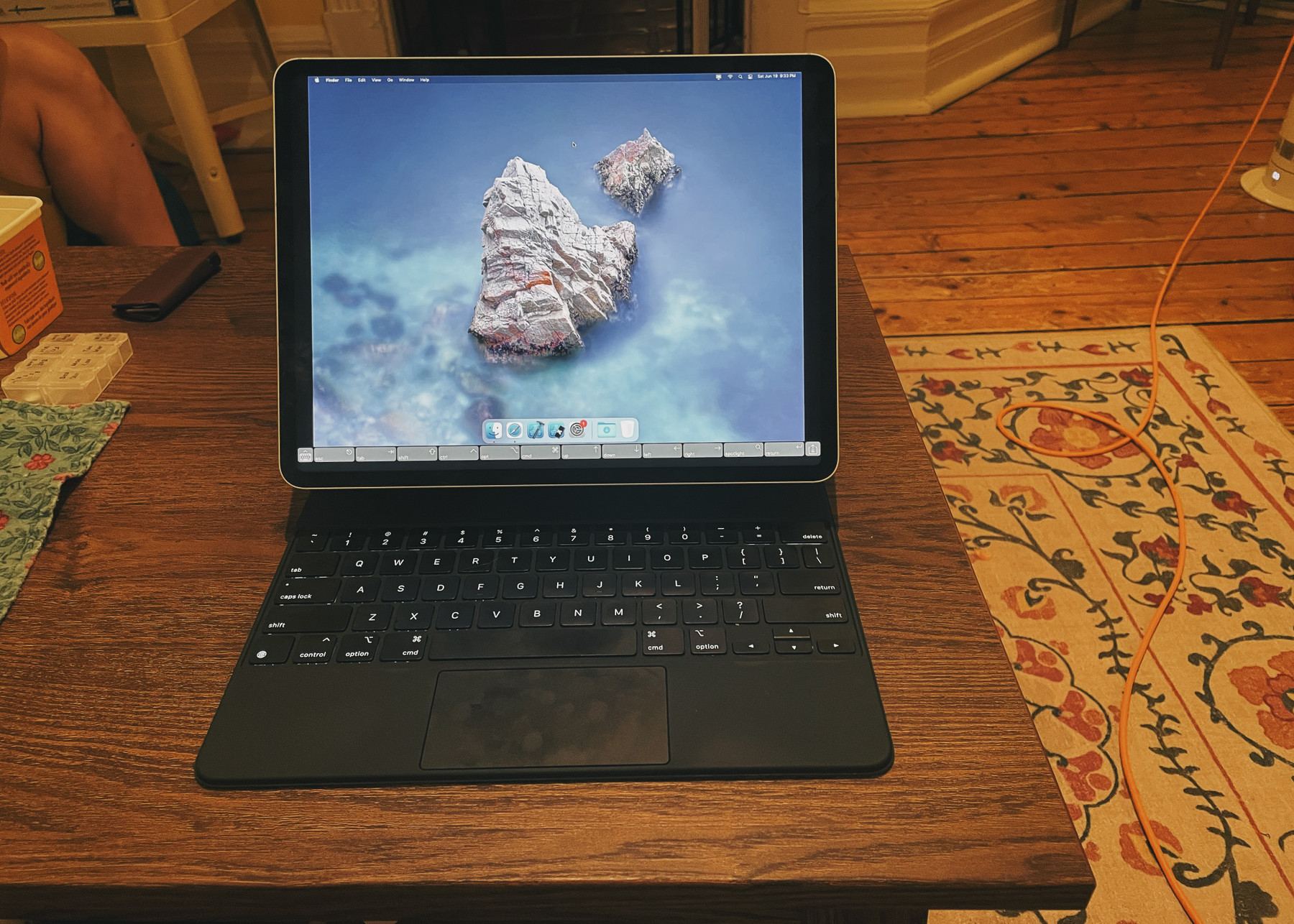
Here’s my Home Screen (with my vision board)! (still looking for the image).
This is what I use my iPad for:
- Content Consumption
The iPad, especially the 12.9” with the XDR display, is awesome for consuming content. I primarily use YouTube, Netflix, and the TV app. With that said, I try to limit my content consumption to when I’m eating. Something of note is that while YouTube app doesn’t support Picture-in-Picture, it does support multi-tasking. Put YouTube in the dock and pull the YouTube icon to the left (or right) side while using another app and voilà! Dermatologists hate them! Workaround YouTube’s artificial limitation with this one trick!
- Writing
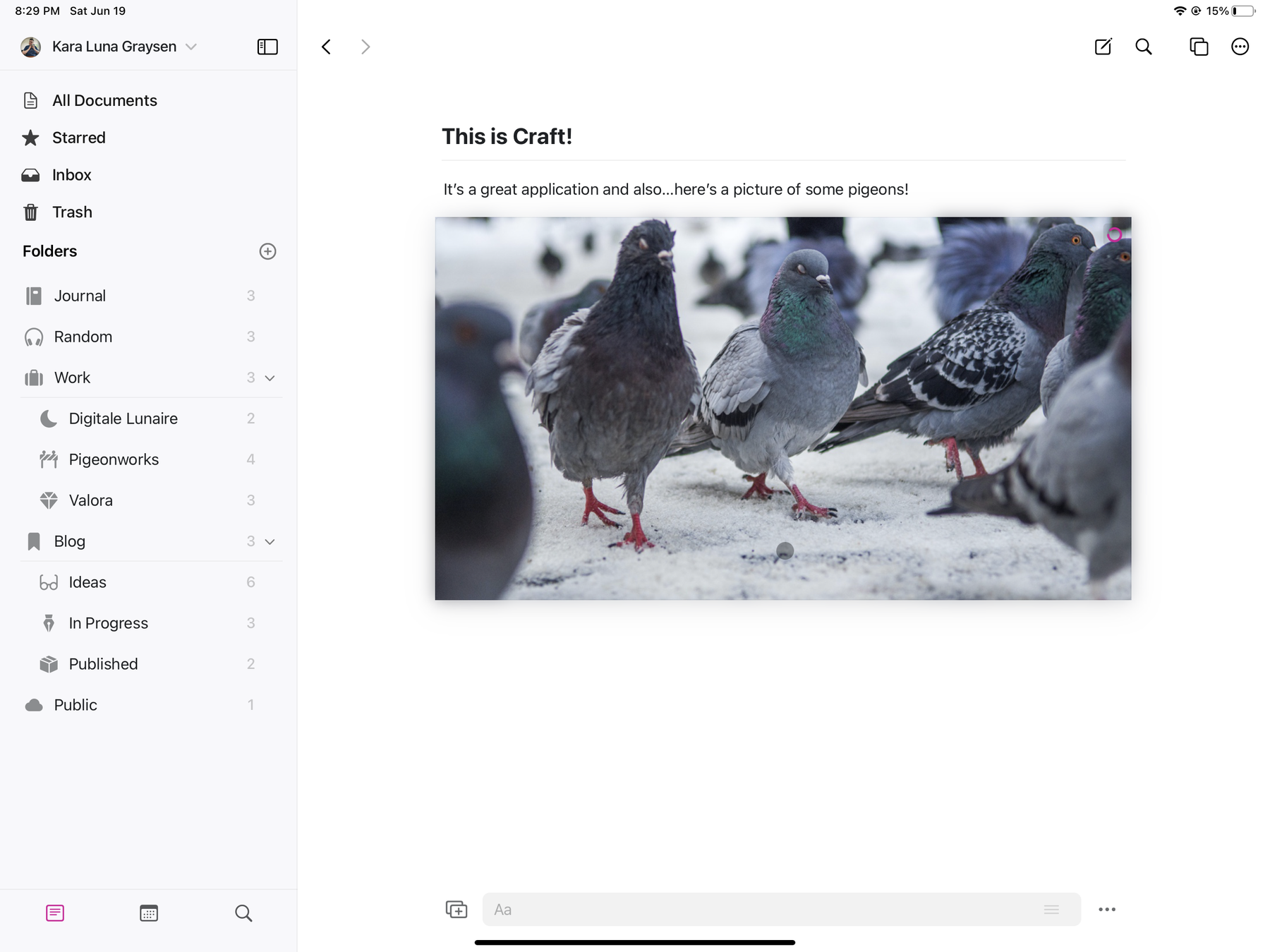
I’ve tried several apps to determine what my requirements are in a writing app. I’ve learned that (1) I need to write using a keyboard instead of with the Pencil so Notability and GoodNotes were out. (2) I wanted Markdown support so Notes and Evernote weren’t a good fit. (3) I want it to be reliable and since Svbtle, while otherwise perfect, went MIA for 4 days without even a single tweet acknowledging the outage — deep breath — it also wasn’t a good fit. With this in mind, I found an app called Craft which is almost perfect. So good in fact, I signed up for a Pro membership this morning to support the developers. I use Craft for writing my blog posts as well as implementing and maintaining my second brain. From my perspective, the only feature that Craft lacks is table support using Markdown syntax which is hopefully coming soon.
- Art
In addition to writing, one of my hobbies is art. I really enjoy drawing pigeons doing pigeon things but I also enjoy anthropomorphizing them by drawing pigeons doing human tasks. I’m currently working on a piece where one pigeon is playing the guitar and another is playing the drums. It’s no where close to being finished but I might share the finished piece in a future blog post or in the Rendezvous with Cassidoo Discord (which you should totally join btw!). I primarily use Procreate to draw but I also sometimes dabble in Affinity Designer. One accessory I’m really enjoying is Pen Tips for the Pencil. It adds a nice drag to the pencil without needing to commit to a PaperLike screen protector on the iPad itself.
- Brainstorming
My iPad has entered my workflow at work as well. I love to brainstorm ideas and projects, as well as blog posts using an app called OmniGraffle. It’s great for making mind maps, flow charts, diagrams and wireframes to get your ideas on the proverbial page. I also use GoodNotes and Notability to scribble down ideas if I want a more natural pen-to-paper experience.
- App Development (while cheating!)
The last area I use my iPad in is programming (for personal projects). Now that I don’t have a Mac, I had to come up with a solution that didn’t require one just for me. Apple announced at this years WWDC that we will be able to write iOS apps from our iPads starting this fall with the updates coming to Swift Playgrounds 4. I am really excited for the option to build, test, and publish apps from my iPad but I needed a solution now; not in six months. I recently decided that I want to work on an iPad app in my spare time (which I’ll be writing more about it soon). I looked into multiple options. I considered renting from Mac Stadium but, honestly, paying over $100 US dollars a month to borrow one was quite off putting. I’d rather buy a Mac Mini for $899 and have something to show for my investment. I then researched options to develop iOS apps from Linux or how to work around Swift Playgrounds 3’s many limitations but neither option was viable since I want to use the SwiftUI and Combine frameworks.
Feeling defeated, I remembered my partner recently picked up a M1 Mac Mini in anticipation to returning to school this fall (he was accepted into uni to study anthropology and I am super proud!). He primarily uses his Mac during the day when I’m at my office so I could just use his computer during the evenings. This is what I’d do if I was a normal person but instead I did some research into how we could both use the machine at the same time (since after all, this is his computer and I don’t want to be a nuisance). Apple implemented a feature back in 2010 for OSX Lion that allows multiple users to connect to a machine at the same time using VNC. He can watch his YouTube videos about Breath of the Wild 2 (all I’ve been hearing about these past few days haha) and I can code in Xcode without any performance issues. To connect, I am using an app called Screens which is a pro-level VNC app for the iPad. It’s not inexpensive at $27 but is entirely worth the money. I would honestly pay more. With Screens, I can work on my app from the comfort of my couch and iPad.